VTK + trame + Jupyter = magic
In a previous blog, I promised to cover modern ways of quickly developing user interfaces for prototyping. When I was a junior VTK developer, one of my favorite tools was this:
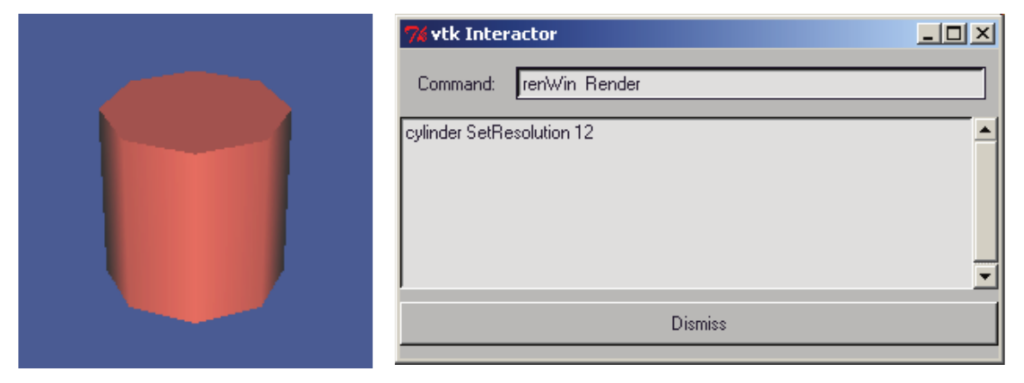
This nameless application enabled the user to type VTK code in the text editor and immediately see the results in the render window on the left. Many of us still like this kind of data exploration be it in an interactive Python shell or Jupyter. The problem with VTK and those approaches is that to interact with the render window, you have to start the interactor with something like iren->Start() at which point you can no longer type. You have to stop the interactor, type some more, and the restart the interactor. So how do we achieve this? Of course, you can use ParaView or write a full blown application that manages a prompt and the interactor in the same event loop (like ParaView 😄). OR you can use trame in Jupyter. Here is the small module that I wrote to do this:
# VTK factory initialization
from vtkmodules.vtkInteractionStyle import vtkInteractorStyleSwitch  # noqa
import vtkmodules.vtkRenderingOpenGL2  # noqa

from vtkmodules import vtkRenderingCore as rendering_core

from trame.app import TrameApp  # Base class for a trame app
from trame.ui.vuetify3 import VAppLayout  # UI layout/container
from trame.widgets import rca


class Viewer(TrameApp):
    def __init__(self):
        super().__init__(None)  # enable self.server, self.state, self.ctrl

        self._renderer = rendering_core.vtkRenderer()
        self._renwin = rendering_core.vtkRenderWindow()
        self._renwin.SetOffScreenRendering(1)
        self._renwin.AddRenderer(self._renderer)
        self._interactor = rendering_core.vtkRenderWindowInteractor()
        self._interactor.SetRenderWindow(self._renwin)
        self._interactor.GetInteractorStyle().SetCurrentStyleToTrackballCamera()

        self._build_ui()

    def add_actor(self, actor):
        self._renderer.AddActor(actor)

    def _build_ui(self):
        with VAppLayout(self.server) as self.ui:
            display = rca.RemoteControlledArea(display="image")
            self.view = display.create_view_handler(
                self._renwin, encoder="turbo-jpeg"
            )
And in Jupyter, here is what I do (let’s call the module vtk_view).
import vtk_view
from trame.app.jupyter_css import fullscreen

from vtkmodules import vtkRenderingCore as rendering_core
from vtkmodules import vtkFiltersSources as sources

cone = sources.vtkConeSource()
mapper = rendering_core.vtkPolyDataMapper()
cone >> mapper
actor = rendering_core.vtkActor()
actor.SetMapper(mapper)

app=vtk_view.Viewer()

app.add_actor(actor)
fullscreen(app)

cone.resolution = 32
app.view.update()
This gives me something like this.
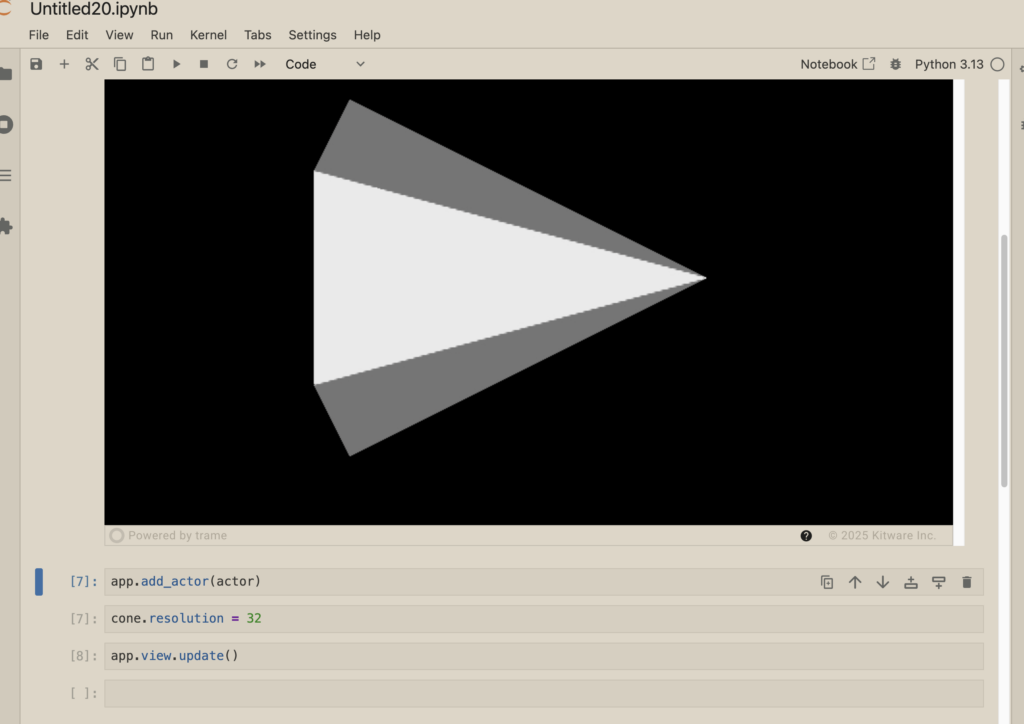
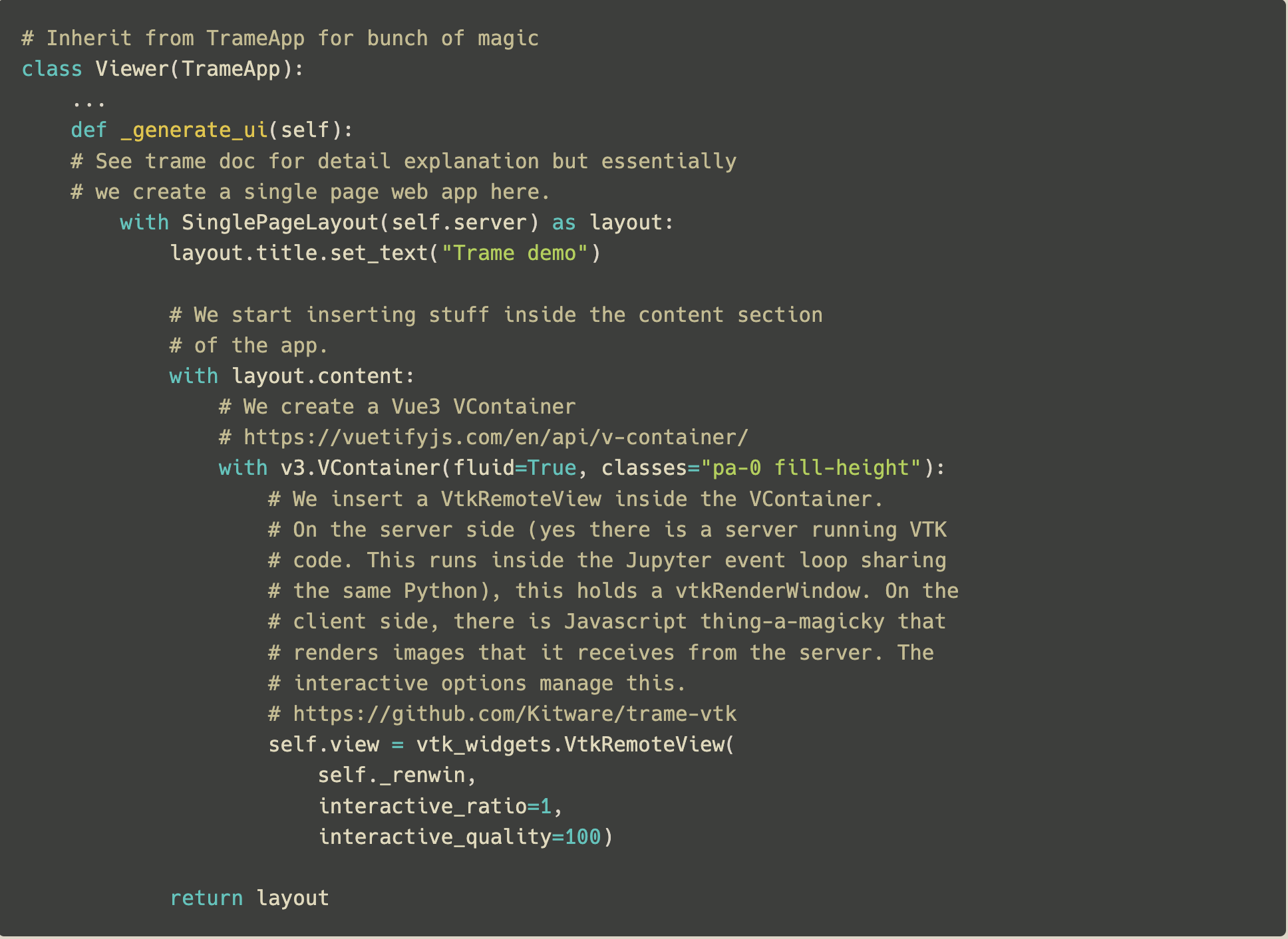
I can now interactively explore VTK to my heart’s content. I can even separate that window as a separate window so that it doesn’t scroll up as I type (using Jupyter Lab). This is the simple VTK application that one can write with trame and yet it is very powerful. Most of the code is self explanatory to those who have seen a cone example. This is the bit that is trame:
# Inherit from TrameApp for bunch of magic
class Viewer(TrameApp):
    ...
    def _build_ui(self):
        # See trame doc for detail explanation but essentially
        # we create a single page web app here.
        with VAppLayout(self.server) as self.ui:
            # On the server side (yes there is a server running VTK
            # code. This runs inside the Jupyter event loop sharing
            # the same Python), this holds a vtkRenderWindow. On the
            # client side, there is Javascript thing-a-magicky that
            # renders images that it receives from the server. The
            # interactive options manage this.
            # https://github.com/Kitware/trame-vtk
            display = rca.RemoteControlledArea(display="image")
            self.view = display.create_view_handler(
                self._renwin, encoder="turbo-jpeg"
            )
The other magic part here is the line that just says app. This is the line that causes Jupyter to render the trame content. I kinda know how it works but not enough to comfortably explain it.
By the way, those with sharp attention may have noticed one thing that is not C++-like that I sneaked into the example:
cone >> mapperThis is sneak preview for my next blog where I start talking about pythonic VTK features that we keep introducing.