Notable additions to ParaView in this version highlighted in this post. For a comprehensive list of new features in ParaView 6.2.0, please see the ParaView 6.2.0 release notes hosted on ParaView’s GitLab project page.
Performance optimizations for static meshes over time
ParaView has been sped up significantly in some filters when applied to static meshes. Static meshes are meshes whose topology and point locations do not change over time, but whose data arrays may change.
Append DataSets
Append Geometry
Clip
Slice
Slice with Plane
Transform
To benefit from these improvements, data must be read by a compatible reader that marks the mesh as static over time. For now, only the VTKHDF reader does this. If you know that your data is actually static, but not read as such (i.e., it was read from a format that is not VTKHDF) you can enforce the behavior with the Force Static Mesh filter.
Note that the speedups are most significant with Unstructured Grids.
Improved CellGrid support in the Information panel, SpreadSheet View, and Render View
Information panel
The Information panel now correctly displays attribute types from CellGrid datasets. When a CellGrid is selected, the arrays table gains two extra columns: Polynomial Order and Degrees of Freedom, giving you quick insight into the mathematical structure of each CellGrid array without leaving the panel.
Because CellGrids may have multiple types of cells, each of which may use a different polynomial function space and basis for a given attribute, the Information panel reports a range of Polynomial Order.
Note that for continuous fields (i.e., those sharing Degrees of Freedom through connectivity entries), Degrees of Freedom shared by cells of different type will be over-reported. An example of this would be a set of quadrilaterals and triangles that share a boundary; coefficient values on the shared boundary will be double-counted. The only way to fix this would consume significant amounts of memory.
SpreadSheet View
The SpreadSheet View now correctly populates the attribute-type selector with the attribute types that are actually present in CellGrid datasets. The selector is driven dynamically by the data information of the active source, so only valid choices are shown.
Render View representations
CellGrid datasets now have a richer set of representations to choose from in the Render View:
Surface With Edges – renders the CellGrid surfaces with their cell edges drawn on top.
Surface With Edges And Vertices – like Surface With Edges but also shows the corner vertices.
All Edges – renders every edge of every cell, useful for inspecting the full wire-frame structure.
All Corners – renders every corner point of every cell.
The default representation for CellGrid data has also been changed from Next Lowest Dimension to Surfaces of Inputs, which produces the most natural-looking result out of the box. The Sides To Show property is no longer exposed in the Properties panel as it is an internal implementation detail. Backward compatibility is preserved: Python scripts that were written against ParaView 6.1 will automatically restore the old default when loaded.
Animated export of the SpreadSheet View
ParaView now supports animated export of a SpreadSheet View, from the File -> Export Scene menu, thanks to the new Write Time Steps option. This creates one file per exported timestep, and features Stride and Frame Window properties to control which timesteps are exported.
Alembic and USD scene export of a Render View over time
In the same way ParaView can export a SpreadSheet View over time to .csv files, ParaView now supports exporting timesteps from a Render View to Alembic (.abc) and OpenUSD (.usd, .usda, and usdc) file formats through the File -> Export Scene menu. Time is exported when the new Write Timesteps option is enabled in the exporter. Stride and Frame Window properties control which timesteps are exported. This feature creates one Alembic or OpenUSD file and a set of supporting files (texture images) per exported timestep.
Easier use of Python Calculator
Use source names from Pipeline Browser
It is now possible to use the names from the Pipeline Browser (aka “RegisteredNames”) to retrieve the inputs instead of using their index in the Expression of Python Calculator. For example : Sphere2 or inputs["Sphere2"] instead of using inputs[1].
Easier expression writing
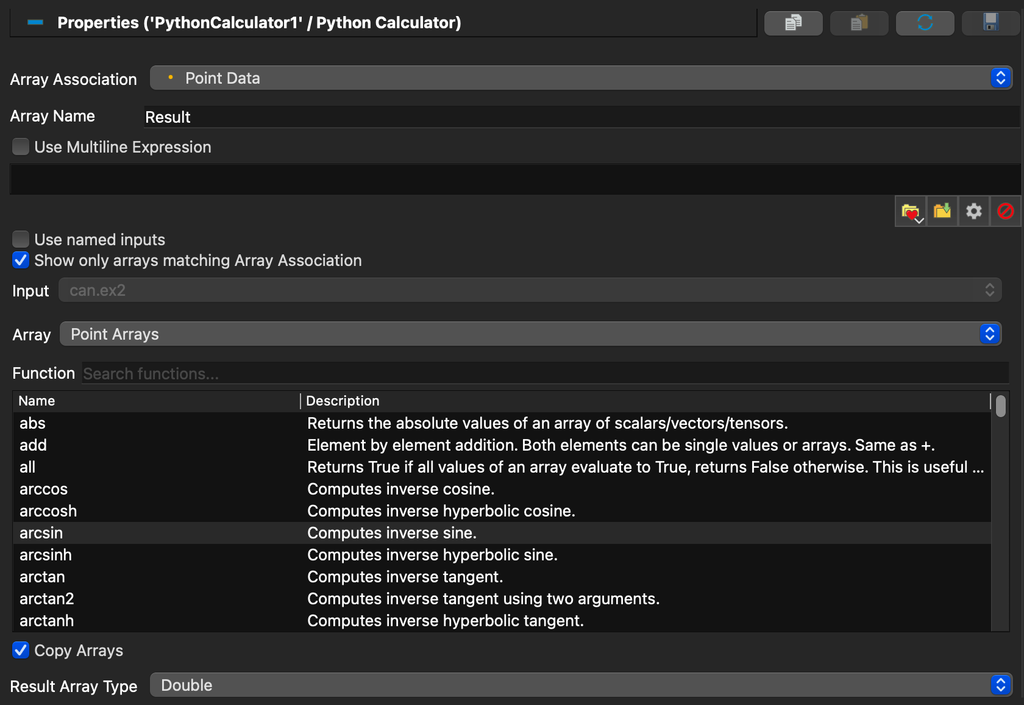
The Python Calculator panel now provides helpers to build expressions so you don’t need to memorize the syntax.
Input: selects which connected input to browse arrays from. Disabled when only one input is connected. When Use Named Inputs is checked, generated accessors use the dataset name (e.g. inputs["Sphere"].PointData["Velocity"]) instead of numeric indexing (e.g. inputs[0].PointData["Velocity"]).
Array: lists arrays from the selected input, optionally filtered to the current Array Association. Clicking inserts the appropriate accessor at the cursor.
Function: searchable list of Python functions available in the calculator’s namespace, with a one-line summary per entry. Hovering shows the full documentation. Double-clicking inserts function() at the cursor with the cursor placed between the parentheses.
The default Array Name is now Result (capitalized), consistent with the regular Calculator filter.
The Properties panel for the Python Calculator showing the Input, Array, and Function pickers.
pvpython can now manage uv-backed virtual environments
ParaView ships its own bundled Python interpreter, which has made it hard to pip install extra packages (trame, custom apps, etc.) without touching the ParaView install itself. The new paraview.envs module uses uv to create separate virtual environments and layers their site-packages on top of pvpython‘s own sys.path, so a script can import paraview (and its C++ bindings) and whatever was pip-installed in the environment.Training 2
paraview.envs is a pvpython module with its own subcommands:
list – list every environment that has been created or installed. pvpython -m paraview.envs list
create – create a named environment from a requirements.txt (does not run anything). pvpython -m paraview.envs create trame ./requirements.txt
use – enter an environment built with create and run a script provided after --. pvpython -m paraview.envs use trame -- ./example.py [args...]
install – install a script as a named, reusable application. Its dependencies are declared as PEP 723 inline script metadata and installed via uv run. pvpython -m paraview.envs install ./cone.py [--name cone] [--replace]
run – run a previously installed application by name. --enable-ssl starts a new Python interpreter directly from the environment (with ParaView’s own modules made available on top of it) instead of running in-process, which some apps (e.g. ones starting their own SSL/HTTPS server) require. pvpython -m paraview.envs run cone [--enable-ssl]
remove – delete an environment (created or installed) and its venv. pvpython -m paraview.envs remove cone
Run pvpython -m paraview.envs <command> --help for a command’s full options. Environments are stored under ~/.config/ParaView/uv-venvs/<python-version>/<name>/ (%APPDATA%/ParaView/... on Windows). This feature requires a uv executable, either bundled alongside ParaView or available on PATH.
… and more
To watch an overview of new features in ParaView, please watch the What’s New in ParaView 6.2.0 webinar below.
Partner with the ParaView Experts
Whether you’re working with large-scale simulation data, improving visualization workflows, or exploring new capabilities like arbitrary order cell grid support and OpenUSD export over time, ParaView 6.2.0 provides a strong foundation for your work.
To get the most out of these features, Kitware offers expert training, technical support, and custom development services tailored to your needs. Our team works directly with organizations to help integrate ParaView into real-world workflows and extend its capabilities for specific applications.
Elevate your ParaView experience with our expert support and services.